

Converting LAZ files to LAS is essential when working with LiDAR data in tools that only support uncompressed formats. LAZ files are compressed versions of LAS, reducing file size without losing data, making them ideal for storage. However, many GIS and 3D software require LAS for smoother processing and compatibility.
Key Methods to Convert LAZ to LAS:
- Cloud Compare: Free, open-source software for quick conversions.
- LAStools (
laszip): Command-line utility for batch processing. - ArcGIS Pro: Built-in tool for converting LAZ to LAS with additional customization.
- Online Tools: Simple web-based conversion for smaller datasets.
Best Practices:
- Verify data integrity using tools like
lasinfo. - Test the converted LAS files in your software to ensure compatibility.
- Always back up your original LAZ files before converting.
Platforms like Anvil Labs simplify post-conversion workflows, offering tools to analyze, visualize, and share LAS files in 3D environments. Proper conversion ensures your LiDAR data remains accurate and ready for analysis.

4 Methods to Convert LAZ to LAS Files for LiDAR Data
How to Convert LAZ Files to LAS in Seconds!
How to Convert LAZ to LAS
Selecting the right method for converting LAZ to LAS depends on the size and complexity of your project. Below are some tools that can handle this conversion effectively while ensuring your data remains intact.
Using Cloud Compare
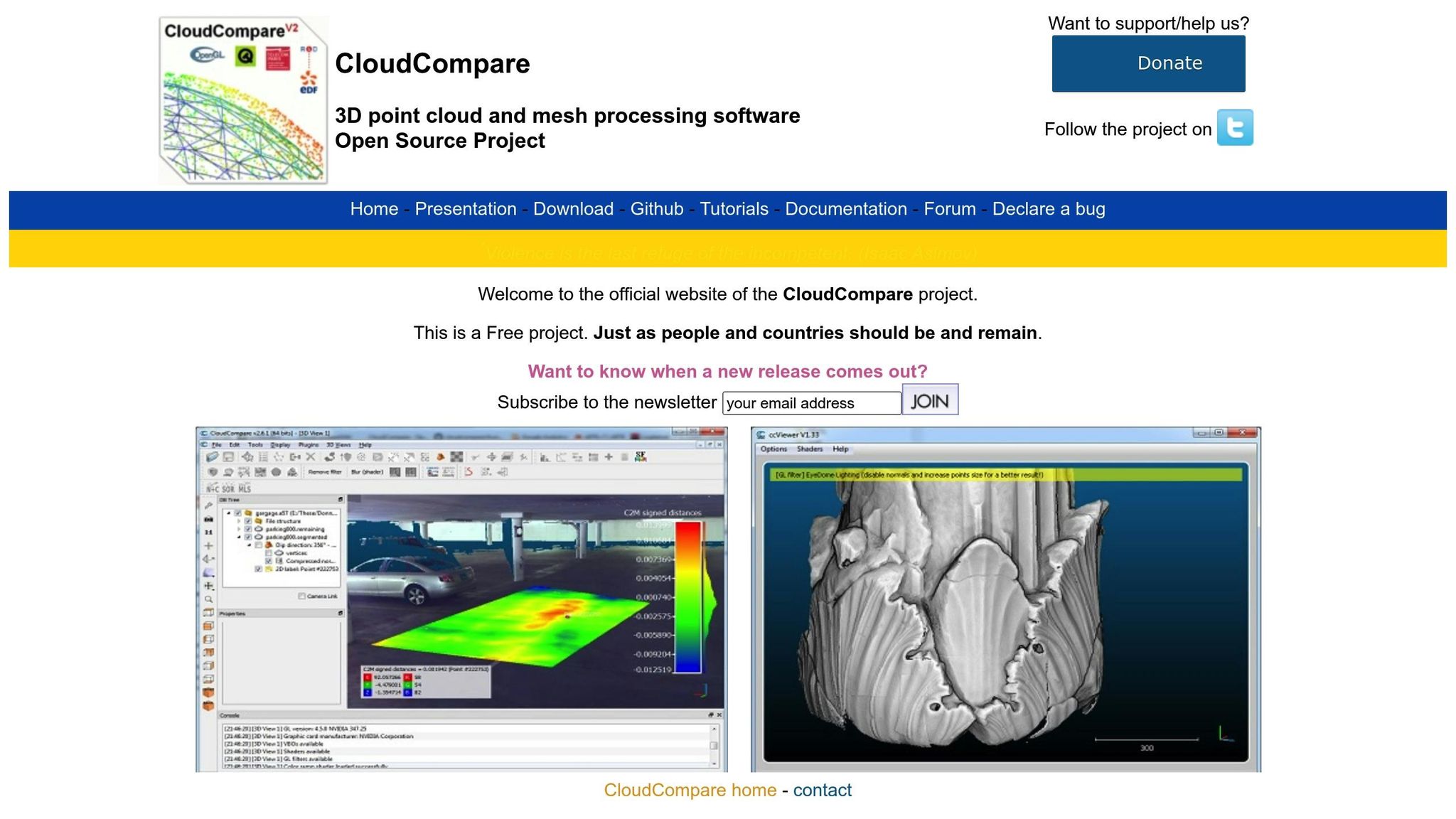
Cloud Compare is a free, open-source 3D point cloud editor that supports LAZ-to-LAS conversion. To get started, open the application and navigate to File > Open to load your .laz file. Once the point cloud is loaded, it will appear in the DB Tree panel on the left side of the interface. Select the point cloud before proceeding. Then, go to File > Save and choose LAS cloud (*.las) from the "Files of type" dropdown menu. You'll be prompted to confirm the LAS version and attribute settings. For larger projects, such as U.S. survey datasets with multiple tiles, you can load several LAZ files at once. However, keep an eye on your system's RAM usage - if performance slows, convert the files in smaller batches.
Using LAStools laszip Command Line
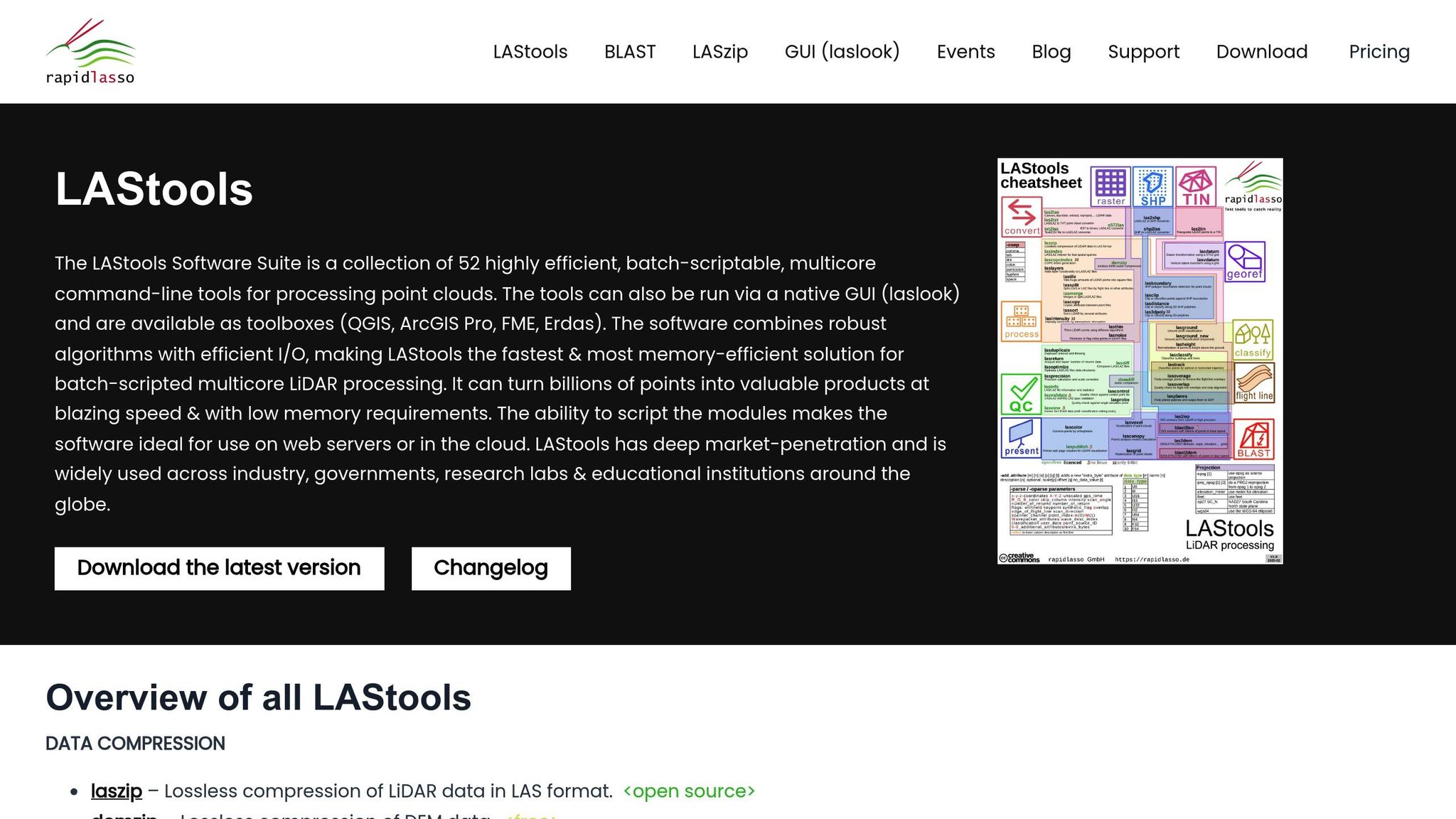
The laszip utility from LAStools is a command-line tool specifically designed for lossless compression and decompression of LAZ files. After downloading and unzipping LAStools, run its startup script to add the bin folder to your system's PATH. Open Command Prompt, navigate to the folder containing your .laz files (e.g., cd C:\data\lidar_tiles), and execute the command laszip -v -i *.laz. This will convert all LAZ files in the directory to LAS files with matching base names. If you're working with multiple subdirectories, include the -r flag for recursive processing. If you encounter a corrupt file, process the files one by one to identify the issue.
Using ArcGIS Pro Convert LAS Tool
For ArcGIS Pro users, the Convert LAS tool is available under the LAS Dataset toolset in the Data Management Tools toolbox. Begin by selecting your .laz files or folder, then specify an output directory. Set the Compression parameter to Uncompressed to produce LAS files. You can also adjust the File Version (1.2 or 1.4) and Point Format to suit your downstream requirements. Before processing large datasets, test the tool with a smaller file to ensure all desired attributes are preserved.
Using Online Conversion Tools
If you’re looking for a quick and simple option, web-based tools like AgriMetSoft LAZ to LAS Converter are worth considering. Visit the website, select the LAZ to LAS conversion option, and upload your .laz file. Once the process is complete, download the converted .las file. While online converters are convenient for smaller files, desktop applications are better suited for handling large or sensitive datasets.
Best Practices for LAZ to LAS Conversion
After converting LAZ to LAS, follow these steps to ensure your data remains reliable and integrates smoothly into your workflow.
Verify Data Integrity
Once the conversion is complete, double-check the integrity of your files. Use the lasinfo tool to compare key metrics between the original LAZ file and the converted LAS file. You'll want to confirm matching point counts, bounding boxes, return statistics, file versions, point record formats, and spatial references. To do this, open Command Prompt, navigate to your LAStools folder by running StartLAStools.bat, and execute the following commands:
lasinfo input.laz
lasinfo output.las
Carefully review the outputs to ensure the metrics match exactly. If you spot inconsistencies, such as mismatched point density or altered classification codes, it could indicate corruption or issues stemming from lossy compression during the conversion process.
Test Compatibility with Target Software
Before proceeding with a large-scale project, test the converted LAS file in your intended software. Import a sample file to verify that it loads properly, the point cloud renders as expected, and classifications are displayed accurately. For example, if you're using Anvil Labs' platform, upload the LAS file and confirm that spatial alignment matches your existing datasets. Check features like cross-sections, measurements, and annotations to ensure seamless integration.
If you're working on a large project, start with a small batch of files. Validate their performance in your software, and once you're confident everything works as intended, proceed with converting and testing the remaining files.
Backup Original Files
Always create a backup of your original LAZ files before conversion. Use a clear naming convention, such as LAZ_Backups_12182025, and store them in a secure location. You can back up files using the following command in Command Prompt:
copy *.laz C:\Backups\
Since LAZ files are compressed, they serve as your authoritative source. Keeping backups ensures you can recover your data if anything goes wrong during the conversion process. For added security, consider storing backups on an external drive or in cloud storage.
sbb-itb-ac6e058
How Anvil Labs Supports LiDAR Data
LiDAR Point Cloud Support
After converting your LAZ files to LAS, Anvil Labs offers a platform where you can upload and manage LAS files alongside other site data. These LAS files are rendered as interactive 3D visuals, allowing you to integrate point clouds with industrial asset data. The platform serves as a unified workspace tailored for industries like oil and gas, utilities, and infrastructure.
With cloud-based processing, your LAS files are prepared for viewing and analysis automatically. This eliminates the hassle of switching between multiple tools - everything from hosting assets to running spatial queries happens in one place. Both field teams and office staff can access the same datasets in real time, ensuring everyone is working with up-to-date information. The platform also supports advanced tools for processing and visualization, streamlining workflows.
Data Processing and Visualization
Anvil Labs includes tools for industrial-grade annotations and precise measurements. Whether you’re calculating distances, areas, or volumes, the platform supports measurements in U.S. units like inches for pipe diameters or feet for terrain elevations. Visualization features like intensity mapping and cross-sectional slicing allow you to explore structural details without needing to switch software.
AI integration takes your LAS data workflows further by automating tasks like asset detection and anomaly identification. According to user feedback, this automation helps uncover 30% more defects compared to manual inspections, while reducing inspection time by 75%. You can annotate defects directly on LiDAR scans - such as marking pipeline encroachments or structural problems - and securely share these annotations with stakeholders.
Integration and Accessibility
The platform is designed for accessibility across devices, including desktops, tablets, and smartphones. Field teams can use iPads or phones to access LAS point clouds without needing additional plugins. Real-time collaboration is seamless, with updates syncing instantly for all users. This means on-site inspectors can take measurements and share findings immediately.
Anvil Labs also integrates with tools like Matterport to combine 360° imagery with LAS point clouds, YouTube for sharing visualization videos, and task management systems like Jira for tracking issues identified during analysis. These integrations create a connected workflow, feeding your LiDAR data directly into project management and reporting processes. Secure, role-based sharing ensures you control who can view or edit datasets, which is especially important for sensitive industrial projects involving contractors or external teams.
Conclusion
Transforming LAZ files into LAS format is straightforward when you’ve got the right tools. Whether you’re using visual editors, command-line utilities, or GIS software, there’s an option suited to your technical expertise and project needs.
Getting the conversion process right matters. By sticking to the verification, testing, and backup steps discussed earlier, you can ensure that critical data - like point classifications, intensity values, and spatial coordinates - remains accurate and reliable. This is essential for applications like terrain modeling, infrastructure inspections, or asset management.
Since many analysis tools work exclusively with uncompressed LAS files, proper conversion helps you avoid data loss and workflow interruptions. It keeps your focus on the actual analysis instead of wrestling with file format issues.
Once converted, platforms such as Anvil Labs take it a step further by offering cloud-based processing and visualization for LAS files. These platforms allow field teams to access point clouds from any device, while built-in tools simplify collaboration across your organization. User feedback highlights impressive results: 75% faster inspections and the ability to detect 30% more defects compared to manual methods.
FAQs
Why should you convert LAZ files to LAS for LiDAR data processing?
Converting LAZ files to LAS can make your workflow smoother and more efficient. Since LAS files are uncompressed, they allow for faster processing and are easier to handle when performing tasks like detailed inspections, identifying defects, or managing assets.
On top of that, LAS files are more straightforward to manage. They provide better accessibility and integrate effortlessly into various workflows, making spatial analysis more efficient and accurate.
What steps can I take to preserve data accuracy when converting LAZ files to LAS?
To ensure your data remains accurate during a LAZ to LAS conversion, follow these steps:
- Use trusted software equipped with validation tools to reduce the risk of errors.
- Double-check critical data, like coordinates, intensity values, and classifications, both before and after converting.
- Visually review the point cloud to spot any discrepancies or missing details.
- Always save a backup of your original LAZ files to safeguard against potential issues or for future reference.
Relying on tools built for precise data management can help maintain the quality and reliability of your files throughout the conversion.
What can I do if my software doesn’t work with LAS files?
If your software doesn’t work with LAZ files, you can convert them to LAS using tools like CloudCompare or LASzip. These programs are specifically built for handling point cloud data and file conversions, making the task efficient and reliable.
Once you've converted your files to LAS, you can import them into your software for further processing. Always double-check your software’s documentation to confirm any specific file format requirements before you begin. This ensures a smooth workflow and avoids compatibility issues.

.svg)


