

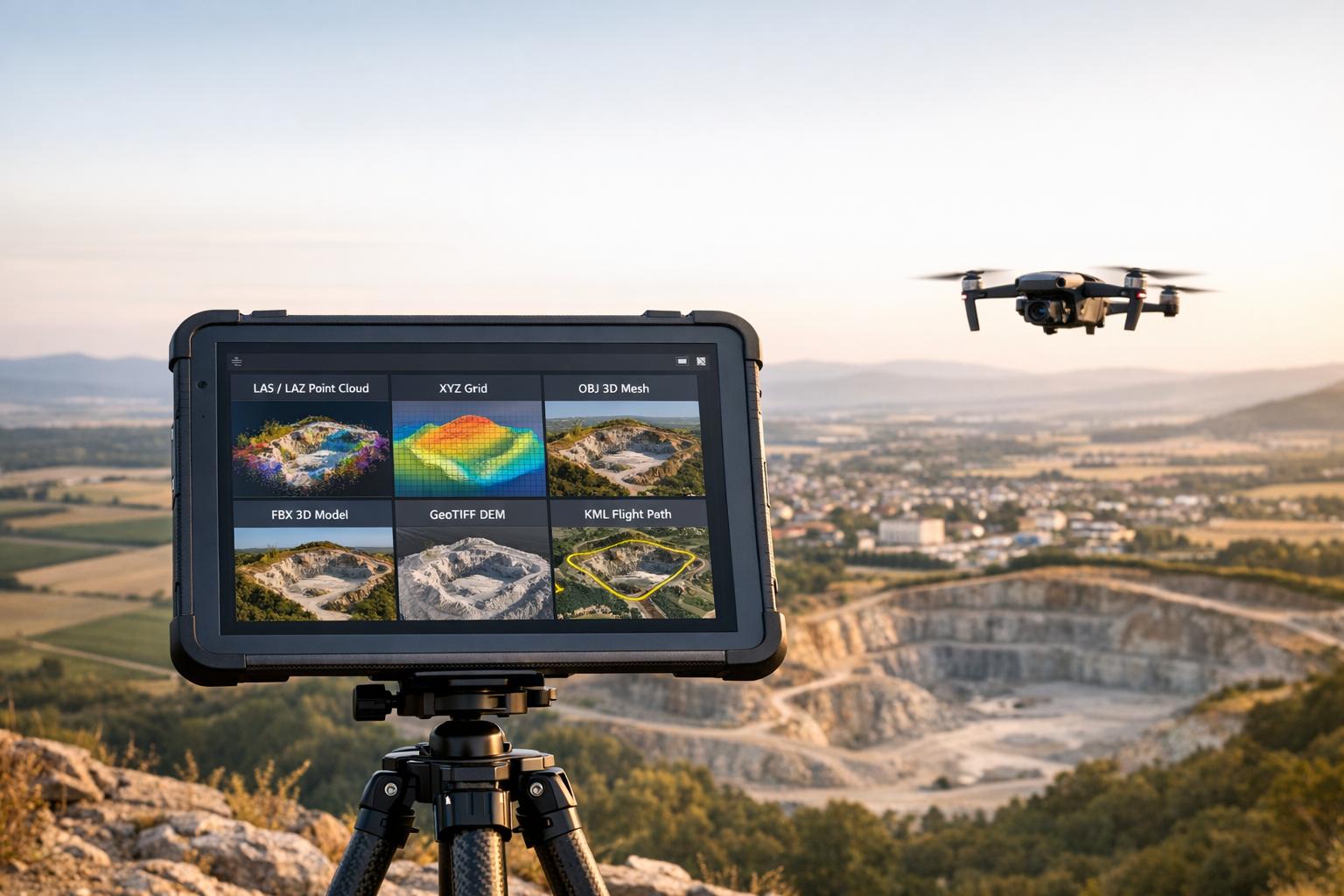
The file format you use for drone data can significantly impact workflow efficiency, accuracy, and compatibility with software. Different formats are suited for specific tasks like point clouds, textured meshes, or georeferenced maps. Picking the correct format ensures seamless data sharing, precise analysis, and reduced processing time.
Key Takeaways:
- Point Clouds: Use XYZ for simplicity, LAS for GIS compatibility, or LAZ for compressed storage.
- Textured Meshes: Choose OBJ for wide compatibility, FBX for detailed scenes, or PLY for scientific data.
- Georeferenced Outputs: GeoTIFF is ideal for orthomosaics and DEMs, while KML is best for lightweight sharing.
Quick Overview:
- XYZ: Simple but large files; lacks georeferencing.
- LAS/LAZ: Industry standard for LiDAR; LAZ reduces file size significantly.
- OBJ: Widely supported for static models; no georeferencing.
- FBX: Best for animations and complex visualizations.
- GeoTIFF: Precise georeferencing for GIS; large file sizes.
Selecting the right format saves time, ensures accuracy, and keeps your projects running smoothly.

Drone 3D Model File Formats Comparison Guide
What are the Different Drone Data Formats & What Do They Mean? | Hammer Missions
sbb-itb-ac6e058
Point Cloud Formats for Drone Data
Point cloud formats are essential for managing the millions - or even billions - of 3D coordinates captured by drone sensors. Every time a drone flies over a site, it generates a massive dataset. The format you choose for storing this data can make a big difference in how easily your team can extract terrain models, distinguish between ground and vegetation, or share data across software platforms without losing crucial details.
Three formats are most commonly used in drone workflows: XYZ, LAS, and LAZ. Each has its strengths, and knowing when to use them can save both time and storage space. Let’s break them down.
XYZ Format
The XYZ format is as straightforward as it gets. It stores point cloud data in plain text, with each line representing a single point using three coordinates: X, Y, and Z. This simplicity makes it compatible with nearly any software, from CAD tools to custom Python scripts.
"The XYZ format is the lowest common denominator across any point cloud ecosystem." – CAD Interop
That said, simplicity has its downsides. XYZ files are large - storing 20 million points can take up about 1.2 GB of space. Additionally, XYZ files don’t include georeferencing information, meaning you’ll need to manually assign coordinates in GIS software to align the data with real-world locations.
When to use XYZ: It’s best for quick prototyping or when working with older software that doesn’t support more advanced formats. Just be sure to document the coordinate system, units (such as feet or meters), and column order separately to avoid alignment issues.
Now, let’s look at how LAS and LAZ offer more efficient solutions.
LAS and LAZ Formats
The LAS format is a binary standard specifically designed for LiDAR and drone point clouds by the American Society for Photogrammetry and Remote Sensing (ASPRS). It’s packed with metadata, including GPS timestamps, intensity values, return numbers, scan angles, and ASPRS classifications. These classifications label points as ground, vegetation, buildings, or water, making LAS files immediately usable in GIS software.
"LAS is the open standard of reference for storing and exchanging LiDAR data." – CAD Interop
LAS files also embed coordinate reference systems (CRS) directly, so your data aligns with real-world maps when opened in GIS tools like QGIS or ArcGIS Pro. Plus, LAS files are much smaller than XYZ files - the same 20 million-point dataset is reduced to around 400 MB.
LAZ, the compressed version of LAS, is ideal for archiving and sharing large datasets. It uses lossless compression, meaning the data remains identical after decompression. LAZ files are incredibly storage-efficient, reducing file sizes to just 7% to 25% of the original LAS file. This can save up to 90% on storage and transfer costs without losing any data.
| Format | File Size (20M Points) | Georeferencing | Classification | Best Use Case |
|---|---|---|---|---|
| XYZ | ~1.2 GB | None (manual) | None | Simple scripts, prototyping |
| LAS | ~400 MB | Native (embedded CRS) | Up to 256 ASPRS classes | Active GIS analysis, drone mapping |
| LAZ | ~60 MB | Native (embedded CRS) | Up to 256 ASPRS classes | Archiving, data exchange |
Pro tip: Always use LAS 1.4 for new drone projects. It supports 64-bit point counters (handling datasets with over 4.2 billion points), 256-class classification, and custom attributes like NDVI indices. Since 2020, LAS 1.4 has been the standard for all national LiDAR deliveries by the USGS. For storage efficiency, archive your data in LAZ format - most modern tools, like DJI Terra and Pix4D, export directly to LAZ. Plus, GIS software can read LAZ files without requiring decompression.
3D Textured Mesh Formats
Textured mesh formats convert raw point cloud data into detailed 3D models, making them ideal for site visualization, digital twins, and sharing without the need for specialized software.
The four most common formats in drone workflows are OBJ, FBX, PLY, and DXF. Each serves a unique purpose, whether for static models, animated scenes, or CAD integration. Let’s break down these formats and see how they fit into drone-based workflows.
OBJ Format
Developed by Wavefront Technologies in the 1980s, the OBJ format is a plain-text file that stores geometry (vertices and faces), texture coordinates, and material references. Its simplicity ensures compatibility with nearly all 3D software.
"OBJ will often be the default 3D file format for mainstream 3D modeling packages... because it employs a flexible text-based language." – Paweł Nikiel, 3D Software Engineering Lead, CGTrader
While its text-based structure makes it universally compatible, it also results in larger file sizes. OBJ files do not support animations, lighting, or advanced material effects. For drone operators, a key limitation is the use of a model-local coordinate system instead of real-world coordinates, which can complicate workflows involving georeferenced data.
Best use case: OBJ is perfect for general 3D modeling, printing, or any project requiring broad compatibility across software platforms.
FBX Format
FBX is Autodesk's proprietary format and is designed to handle more complex scenes. It supports geometry, animations, lighting, and other detailed scene attributes, making it a favorite for game engines and cinematic applications.
"Developed by Autodesk, FBX is a versatile file format used for exchanging 3D models, animations, and other assets between different software applications. It supports geometry, materials, textures, animations, and more." – Brandon Stocking
FBX files use binary encoding, which speeds up loading times. However, working with FBX often requires Autodesk tools or compatible software.
Best use case: Use FBX for projects that involve animations or complex lighting setups, such as interactive urban planning or cinematic presentations.
PLY Format
PLY, also known as the Stanford Triangle Format, was created in the 1990s for 3D scanner data. It’s particularly good at capturing detailed vertex data, including geometry, texture coordinates, colors, transparency, surface normals, and even confidence values. For large datasets, the binary version is recommended.
Best use case: PLY is ideal for scientific analysis, archaeology, or any project requiring detailed vertex data, such as converting point clouds to meshes.
DXF Format
DXF (Drawing Exchange Format) is another Autodesk standard, primarily used for CAD data exchange. While often associated with 2D designs, DXF is useful for transferring 3D drone data into engineering and architectural software like AutoCAD. Its focus on vector geometry, layers, and annotations makes it better suited for georeferenced contours and layouts than for photorealistic textures.
Best use case: DXF works best for integrating drone data into CAD software for engineering, site planning, or construction documentation.
| Format | Primary Use Case | Animation Support | File Size | Best For |
|---|---|---|---|---|
| OBJ | Static models, 3D printing | No | Large (text-based) | Broad compatibility, web viewing |
| FBX | Gaming, Film, Complex scenes | Yes | Compact (binary) | Interactive applications, cinematic visualizations |
| PLY | 3D Scanning, Vertex data | No | Variable (ASCII/Binary) | Scientific analysis, detailed scans |
| DXF | CAD Interoperability | No | Moderate | Engineering, construction workflows |
Choosing the right mesh format is crucial for integrating drone data into efficient 3D workflows. Each format offers distinct advantages depending on the project’s needs, from universal compatibility to advanced scene details or CAD precision.
Orthomosaic and DEM Formats
While textured meshes are great for 3D visualization, drone operators often need georeferenced outputs for deeper analysis. This is where Orthomosaics and Digital Elevation Models (DEMs) come into play. These tools rely on raster formats that embed spatial data directly into their files, making them essential for drone mapping.
The most common formats are GeoTIFF, TIFF, and KML. Each serves a distinct purpose, from professional GIS analysis to creating presentations for stakeholders. Knowing when to use each format ensures your drone data remains accurate and accessible across various platforms. Let’s break down what makes each format useful.
GeoTIFF Format
GeoTIFF stands out as the go-to format for drone mapping. It embeds georeferencing information directly into the file, unlike standard TIFF files, which require an external .tfw "World File" for spatial data. This means GeoTIFF files include metadata about map projections, coordinate systems, and other geospatial details right in the file header.
"The GeoTIFF format has become the de facto standard due to its wide software support and ability to embed georeferencing information directly in the file." – Geopera
Because of this embedded metadata, GIS software can automatically position GeoTIFF files at their correct geographic location without any manual input. This makes it an ideal choice for projects requiring precision.
For DEMs, GeoTIFF supports 32-bit floating-point values, which are essential for capturing precise elevation details. Formats limited to integers can create a "stepped" effect, reducing vertical accuracy due to rounding. When exporting DEMs, always opt for 32-bit floating-point GeoTIFFs to preserve accuracy.
However, standard GeoTIFF files have a file size limit of 4 GB. For larger projects, you can use BigTIFF. Additionally, Cloud Optimized GeoTIFF (COG) variants allow for streaming specific map sections online.
Best use case: GeoTIFF is ideal for tasks like measurements, volumetric analysis, hydrological modeling, and professional GIS workflows.
TIFF Format
TIFF (Tag Image File Format) is a high-resolution format primarily used for graphics and image storage. While it serves as the foundation for GeoTIFF, a standard TIFF file lacks internal georeferencing. Instead, it requires a .tfw World File in the same folder to provide spatial context.
GeoTIFF files are compatible with TIFF 6.0, meaning even software that doesn’t recognize geospatial metadata can open them as standard images. This backward compatibility makes GeoTIFF files accessible in basic image editors like Photoshop.
Best use case: Standard TIFF works well for high-quality image storage when georeferencing isn’t needed, such as in archival photography or print projects.
KML Format
KML (Keyhole Markup Language) is an XML-based format designed for geographic visualization in tools like Google Earth. Unlike raster formats, KML is more suited for sharing and annotating 3D data rather than detailed analysis.
KML files use projections optimized for web platforms. For instance, Web Mercator (EPSG: 3857) is used for Google Earth and Mapbox, while WGS84 (EPSG: 4326) is common in desktop GIS software like ArcGIS.
One of KML’s biggest advantages is its small file size. Unlike GeoTIFF files, which can be hundreds of megabytes, KML files are often just a few kilobytes. This makes them perfect for lightweight sharing and web-based visualization.
Best use case: Use KML or KMZ for sharing drone maps with clients or stakeholders who need to view the data in tools like Google Earth.
| Format | Primary Use | Georeferencing Method | File Size | Best For |
|---|---|---|---|---|
| GeoTIFF | Professional GIS analysis, DEMs, Orthomosaics | Embedded GeoKeys (Projections, Datums) | Large (often hundreds of MB) | Measurements, volumetric analysis, hydrological modeling |
| TIFF | High-resolution image storage | External (.tfw World File sidecar) | Large | Archival photography, print materials |
| KML/KMZ | Web visualization | Web Mercator Projection (EPSG: 3857) | Small (kilobytes to a few MB) | Stakeholder presentations, Google Earth viewing |
Choosing the right format depends on your specific needs. For detailed analysis and precision, GeoTIFF is unmatched. For lightweight sharing or presentations, KML offers a more accessible option.
File Format Comparison
This section dives into how different file formats stack up, focusing on their features and how they can simplify your drone workflows. Picking the right format means balancing file size, data complexity, and software compatibility. This ensures smooth processing and avoids any hiccups with incompatible software.
Text-based formats like OBJ are widely compatible but tend to produce larger files. On the other hand, binary formats such as FBX handle more complex data - like animations, lighting, and skeletal structures - and usually offer better efficiency.
Neutral formats like OBJ and PLY shine when interoperability is key. Meanwhile, proprietary formats like FBX perform best within their own ecosystems.
Format Comparison Table
| Format | File Type | Main Uses | Strengths | Limitations | Drone Suitability |
|---|---|---|---|---|---|
| OBJ | Mesh (Text-based) | Static models, 3D printing, general sharing | Universally compatible; simple structure | Large file size; no animation or georeferencing | High (ideal for simple textured meshes) |
| FBX | Mesh (Binary) | Game engines, VFX, high-end rendering | Handles complex scene data (lights, cameras, textures) | Closed format; Autodesk-centric; needs official SDKs | High (great for detailed visualization) |
| PLY | Point Cloud/Mesh | 3D scanning, scientific data | Captures vertex colors and normals; flexible for raw data | Can create very large files; less common in mainstream use | High (suitable for raw point cloud data) |
| LAS/LAZ | Point Cloud | Aerial LiDAR, surveying | Industry standard; LAZ compresses data while keeping metadata | Requires specialized GIS software; uncompressed files are large | Essential (standard for drone LiDAR) |
| DXF | CAD | Engineering, architectural workflows | Excellent for CAD; supports layers and annotations | Mostly 2D; limited 3D features; no texture support | Moderate (useful for CAD integration) |
| GeoTIFF | Raster | Orthomosaics, DEMs, GIS analysis | Georeferenced; precise elevation data | Large file sizes; limited to about 4 GB | Essential (best for georeferenced data) |
For transferring files between software, OBJ is a dependable option. However, for drone workflows that demand high precision, GeoTIFF is the go-to for raster data, while LAS/LAZ is best for point clouds. By understanding these formats, you can make informed decisions to keep your drone mapping projects accurate and efficient.
Best Practices for Exporting Drone 3D Models
Getting your export settings right can make or break how your drone data performs down the line. Poor choices during export can lead to oversized files, slow loading times, and compatibility headaches. The good news? A few smart decisions can keep file sizes manageable and ensure smooth integration into your workflow - all without compromising quality.
File Optimization and Compression
One of the easiest ways to streamline your files is by reducing polygons. Cutting triangles by 50% can trim file sizes by about 40-45%, all while maintaining the model's overall structure.
For even greater efficiency, use GLB with Draco compression. Setting the compression level to 7 for production or 8-10 for final delivery can drastically reduce file sizes. For example, the famous Stanford Bunny model shrinks from 2.9 MB to just ~46 kB with this method. Draco compression works by quantizing vertex positions, normals, and texture coordinates, then packing the data efficiently using entropy coding.
Textures are another area where you can save big. Resizing textures (e.g., to 1024x1024) and exporting them in KTX2 format can cut file sizes by 70-90% compared to PNG or JPEG. Plus, KTX2 textures are GPU-ready, meaning they upload directly to the graphics card without needing CPU decompression, which speeds up performance.
To fine-tune your compression, adjust vertex attribute bit depths:
- Positions: 11-14 bits
- Normals: 8-10 bits
- UVs: 10-12 bits
By combining mesh optimization, Draco compression, and KTX2 textures, you can achieve a total file size reduction of 90-95% compared to unoptimized exports.
Once your files are optimized, the next step is ensuring they maintain geospatial accuracy.
Maintaining Georeferencing Accuracy
Compression is only part of the equation - georeferencing is equally important for ensuring your models align with real-world coordinates. This is especially critical for applications like surveying, construction monitoring, and GIS analysis.
For formats like GeoTIFF and LAS/LAZ, make sure CRS (Coordinate Reference System) data is embedded. This ensures that when your model is opened in different software, it appears in the correct location automatically.
If you're exporting meshes (e.g., OBJ or FBX), include a metadata file that specifies the coordinate system and origin. This helps prevent alignment issues when integrating your drone data with site plans or architectural designs.
Finally, double-check your export settings to avoid positional errors. Even a small mistake in selecting the coordinate system can result in your model being shifted by hundreds of feet - potentially leading to costly rework later on.
How Anvil Labs Handles Drone 3D Model Formats
Once you've optimized your drone models, the next step is finding a platform that can manage them effectively. Anvil Labs supports direct uploads of GLB and GLTF formats, with GLTF files compressed in ZIP format. If your models are in other formats, the platform offers manual assistance to process and host your data. This setup ensures a smooth transition from optimization to real-time data sharing and access.
Hosting and Viewing 3D Models
Anvil Labs' 3D Inspector makes your drone models accessible across devices, offering tools to annotate points of interest and measure areas, distances, and volumes directly within the model. A standout feature is its synchronization of the 3D model with the original drone imagery, enabling detailed inspections via a 2D Inspector.
Sharing is straightforward - you can control access permissions (None, Viewable, Editable) and generate embed links to share missions with clients or collaborators. The interface is also highly adaptable, allowing you to resize, move, and group data tabs to fit your workflow needs.
But Anvil Labs doesn’t stop at hosting; it also integrates seamlessly with essential industrial tools.
Integration with Industrial Tools
Using the Assets feature, Anvil Labs lets you connect external resources like Matterport digital twins, Google Docs, and Google Sheets directly to a mission, creating a centralized hub for all project data. It also supports data from widely used drone flight software, including DroneLink and DroneDeploy.
For large-scale projects, the platform's API simplifies bulk image uploads and kickstarts 3D model processing, cutting down on manual work and speeding up operations on industrial sites. If you're new to the platform, you can explore these features with a free trial.
Conclusion
Choosing the right file format for your drone data is all about aligning it with your workflow requirements. For LiDAR data, LAS and LAZ formats are ideal for maintaining point cloud precision. On the other hand, photogrammetry projects that demand detailed textures benefit from OBJ and FBX formats, which are perfect for asset inspections and creating digital twins. The goal is to ensure the format supports your specific needs - whether that's seamless integration with GIS platforms, efficient data sharing among teams, or maintaining accurate georeferencing for tasks like earthworks and volume calculations.
Precision in selecting file formats can lead to notable savings in both time and money. For instance, drone photogrammetry, when paired with well-placed Ground Control Points, can achieve exceptional accuracy levels: horizontal measurements within 0.4–1.2 inches and vertical measurements within 0.8–2 inches. This level of precision is critical for tasks like contract billing and regulatory compliance. A great example comes from the Via Salis team, which used drone data to monitor over 2 million m³ of excavated material for a 32-kilometer highway project. Their approach reduced what would have taken weeks of surveying to just a single day, all while maintaining the precision needed for invoicing.
"The quality of your drone data directly affects the quality of your decisions." - Miroslav Staubr, CEO, AVAG Pro
Once your data is captured and optimized, managing it efficiently becomes the next priority. Platforms like Anvil Labs offer cloud-based hosting solutions for 3D models, LiDAR point clouds, and orthomosaics, making it easier to store and share large datasets. With features like integration into industrial tools and role-based access control, Anvil Labs ensures your data is secure yet accessible to the right stakeholders. This streamlines the entire process, bringing advanced file management within reach for any team.
Whether your focus is on bridge inspections, tracking construction progress, or building digital twins for predictive maintenance, the right combination of file formats and management tools is essential. Start with the format that aligns with your capture method, validate it against industry standards, and leverage cloud platforms to scale your workflows effectively. By combining the right file formats with a platform like Anvil Labs, you can ensure your drone data drives better decisions and keeps your projects on track.
FAQs
Which format should I export for LiDAR vs photogrammetry?
When working with LiDAR data, exporting in LAS or LAZ formats is the way to go. These formats maintain high point density and precision, making them perfect for tasks like elevation modeling and analyzing vegetation.
For photogrammetry, consider formats like OBJ, FBX, or orthomosaics such as GeoTIFF. These are excellent for preserving detailed textures and visual quality, ideal for creating textured 3D models or adding spatial context to digital twins.
How do I keep my drone model correctly georeferenced?
Ground Control Points (GCPs) are physical markers with known coordinates that help align your drone's aerial imagery with real-world locations. They play a key role in improving the accuracy of georeferenced models.
Here’s how to use them effectively:
- Strategic Placement: Place 5–10 GCPs across the area you’re mapping. Be sure to cover not just the horizontal spread but also areas with elevation changes.
- Precise Measurement: Use tools like RTK (Real-Time Kinematic) or PPK (Post-Processed Kinematic) systems to measure the exact coordinates of each GCP.
- Image Processing: Feed the GCP data into photogrammetry software when processing your drone imagery. This step ensures the final model is properly aligned and more precise.
By following these steps, you can significantly enhance the accuracy of your drone-generated maps and models.
When should I use LAZ instead of LAS?
When storage space is at a premium, LAZ files are a great solution. They can compress data by up to 90% while maintaining the original accuracy of the information.
However, there's a tradeoff: since LAZ files need to be decompressed before use, this can slightly slow down data processing. It's worth considering this balance between storage efficiency and processing speed based on your specific needs.

.svg)


